Minggu, 02 Maret 2014

Merasa jengkel dengan user yg mendownload file secara besar dan menggunakan Download Manager pasti susah di atasi.

berikut cara limit ekstensi yang paling sering di download.
saya menggunakan mikroitk versi 4 running d RB 750G.

Pertama tandai ekstensi


1/ip firewall layer7-protocol
2add comment="" name=High regexp="^.*get.+\\.(exe|rar|iso|zip|7zip|0[0-9][1-9]|flv|mkv|avi|mp4|3gp|rmvb|mp3|img|dat|mov).*\$"
3add comment="" name=Mid regexp="^.*get.+\\.(zip|rar|7z).*\$"
4add comment="" name=End regexp="^.*get.+\\.(pdf|doc|docx|xlsx|xls|rtf|ppt|ppt).*\$"
5add comment="" name=Video regexp="http/(0\\.9|1\\.0|1\\.1)[\\x09-\\x0d ][1-5][0-9][0-9][\\x09-\\x0d -~]*(content-type: video)"

Menggunakan Regular Expersion silahkan googling untuk penjelasanya.
High = File yg biasa berukuran besar dan paling sering didownload
Mid = File bertype zip rar 7z berukuran hanya sampai 10 MB jika lebih akan dilimit
End = File yg tidak ingin di limit
Video = Stream Video

Kedua tandai mangle


1/ip firewall mangle
2add action=mark-packet chain=forward comment="High Eks" disabled=no dst-address-list=!Bypass layer7-protocol=High new-packet-mark=High-Ext passthrough=no protocol=tcp
3add action=mark-packet chain=forward comment="Mid Eks" connection-bytes=10485760-4294967295 disabled=no layer7-protocol=Mid new-packet-mark=Mid-Ext passthrough=no protocol=tcp
4add action=mark-packet chain=forward comment="Low Eks" disabled=no layer7-protocol=End new-packet-mark=End-Ext passthrough=no protocol=tcp
5add action=mark-packet chain=forward comment=Video disabled=no layer7-protocol=Video new-packet-mark=Video passthrough=no protocol=tcp src-address-list=!Bypass

Ketiga Buat PCQ dan Simple untuk limit/jepit ekstensi


1/queue type add kind=pcq name=PCQ_Limit_Video pcq-classifier=dst-address pcq-limit=50 pcq-rate=64000 pcq-total-limit=2000
2 
3/queue simple
4add burst-limit=0/0 burst-threshold=0/0 burst-time=0s/0s comment="" direction=both disabled=no dst-address=0.0.0.0/0 interface=all limit-at=0/0 max-limit=64k/64k name=High packet-marks=High-Ext parent=none priority=8 queue=default-small/default-small total-queue=default-small
5add burst-limit=0/0 burst-threshold=0/0 burst-time=0s/0s comment="" direction=both disabled=no dst-address=0.0.0.0/0 interface=all limit-at=0/0 max-limit=128k/128k name=Mid packet-marks=Mid-Ext parent=none priority=5 queue=default-small/default-small total-queue=default-small
6add burst-limit=0/0 burst-threshold=0/0 burst-time=0s/0s comment="" direction=both disabled=no dst-address=0.0.0.0/0 interface=all limit-at=0/0 max-limit=1M/1M name=End packet-marks=End-Ext parent=none priority=2 queue=default-small/default-small total-queue=default-small
7add burst-limit=0/0 burst-threshold=0/0 burst-time=0s/0s comment="" direction=both disabled=no dst-address=0.0.0.0/0 interface=all limit-at=0/0 max-limit=64k/64k name=Video packet-marks=Video parent=none priority=8 queue=default-small/PCQ_Limit_Video total-queue=default-small
Untuk jatah limit / jepit sesuaikan dengan keinginan anda.

untuk script download disini

Kamis, 20 Februari 2014

Mikrotik Policy-Based Routing 2 ISP

2 ISP --->  2 LAN local
What we want to have happen is for all machines in the IP range 192.168.88.100 through 192.168.88.150 to use ISP1 (192.168.25.1), and all machines in the IP range 192.168.88.151 through 192.168.88.200 to use ISP2 (192.168.50.1).
So, our interface IP assignments could be something like this:

/ip address
add address=192.168.88.1/24 disabled=no interface=LAN network=192.168.88.0
add address=192.168.25.1/24 disabled=no interface=WAN1 network=192.168.25.0
add address=192.168.50.1/24 disabled=no interface=WAN2 network=192.168.50.0
First, let’s get some address lists going in IP > Firewall > Address Lists

/ip firewall address-list
add address=192.168.88.100-192.168.88.150 comment="Use ISP 1" disabled=no list=patron
add address=192.168.88.151-192.168.88.200 comment="Use ISP 2" disabled=no list=staff
Now, let’s set up routing marks based on the address lists above:

/ip firewall mangle
add action=mark-routing chain=prerouting comment=ISP1 disabled=no new-routing-mark=ISP1 passthrough=yes src-address-list=patron
add action=mark-routing chain=prerouting comment=ISP2 disabled=no new-routing-mark=ISP2 passthrough=yes src-address-list=staff
Finally, we add default routes based on the routing mark of the packets:

/ip route
add disabled=no distance=1 dst-address=0.0.0.0/0 gateway=192.168.25.1 routing-mark=ISP1 scope=30 target-scope=10
add disabled=no distance=1 dst-address=0.0.0.0/0 gateway=192.168.50.1 routing-mark=ISP2 scope=30 target-scope=10
Another way we could use policy-based routing would be for routing packets through a filtering proxy. Suppose we have a transparent Squid proxy set up for content filtering in our network. We have would need to set up four interfaces including WAN, LAN, and two more to loop the packets out to the Squid box and back into the router. Our diagram is something like this:
Our interface list:

/ip address
add address=192.168.88.1/24 disabled=no interface=LAN network=192.168.88.0 comment="LAN"
add address=192.168.25.1/24 disabled=no interface=WAN network=192.168.25.0 comment="WAN"
add address=192.168.101.1/24 disabled=no interface=F-Out network=192.168.101.0 comment="Filter Out"
add address=192.168.102.1/24 disabled=no interface-F-In network=192.168.102.0 comment="Filter In"
What we would do is cable the filter-out (F-Out) interface of the router to the LAN port of the Squid box (assigned IP 192.168.101.2). Then, cable the Squid box WAN port (assigned IP 192.168.102.2) back to the filter-in (F-In) interface of the router. This creates a detour path to route our packets through if we wish to filter them. Then, set up an address-list for filtered machines, as well as routing marks in mangle:

/ip firewall address-list
add address=192.168.88.100-192.168.88.150 comment="Filtered" disabled=no list=patron
/ip firewall mangle
add action=mark-routing chain=prerouting comment=Filtered disabled=no new-routing-mark=Filtered passthrough=yes src-address-list=patron
Notice in this example that we need only create address-lists and mangle rules for machines we wish to detour through the Squid box as all other packets will exit the router directly through the WAN port and out to the Internet like normal.
Now, we set one routing rule for the detour, using the Squid box LAN IP as our gateway:


/ip route
add disabled=no distance=1 dst-address=0.0.0.0/0 gateway=192.168.101.2 routing-mark=Filtered scope=30 target-scope=10

Senin, 03 Februari 2014

Mikrotik RouterOS Multi-WAN PPC

Mikrotik RouterOS Multi-WAN PPC howto


This guide assumes the following:

"ISP1" is your 1st wan connection name
"ISP2" is your 2nd wan connection name
"LAN" is your local network name

"ISP1" recieves the IP 111.111.111.1/24 on the network 111.111.111.0/24
"ISP2" recieves the IP 222.222.222.1/24 on the network 222.222.222.0/24

1. If your ISP assigned IP's via DHCP be sure to do the following (if they are assigned static move to step 2):

Log into the routeros webfig or winbox:
  • IP
  • DHCP Client
  • Click on your first WAN DHCP client
  • Change "add default gateway" to no
  • Repeat the same for your second WAN connection

2. Remove current routing rules
  • IP
  • Firewall
  • Nat
  • Remove the entry for "masquerade" to your current single ISP.

3. SSH into your router and run the following script:
Code:
/ ip firewall mangle
add chain=prerouting dst-address=111.111.111.0/24  action=accept in-interface=LAN
add chain=prerouting dst-address=222.222.222.0/24  action=accept in-interface=LAN
add chain=prerouting in-interface=ISP1 connection-mark=no-mark action=mark-connection new-connection-mark=ISP1_conn
add chain=prerouting in-interface=ISP2 connection-mark=no-mark action=mark-connection new-connection-mark=ISP2_conn
add chain=prerouting  in-interface=LAN connection-mark=no-mark dst-address-type=!local per-connection-classifier=both-addresses:2/0 action=mark-connection new-connection-mark=ISP1_conn
add chain=prerouting  in-interface=LAN connection-mark=no-mark dst-address-type=!local per-connection-classifier=both-addresses:2/1 action=mark-connection new-connection-mark=ISP2_conn
add chain=prerouting connection-mark=ISP1_conn in-interface=LAN action=mark-routing new-routing-mark=to_ISP1
add chain=prerouting connection-mark=ISP2_conn in-interface=LAN action=mark-routing new-routing-mark=to_ISP2
add chain=output connection-mark=ISP1_conn action=mark-routing new-routing-mark=to_ISP1     
add chain=output connection-mark=ISP2_conn action=mark-routing new-routing-mark=to_ISP2

/ ip route
add dst-address=0.0.0.0/0 gateway=111.111.111.1 routing-mark=to_ISP1 check-gateway=ping
add dst-address=0.0.0.0/0 gateway=222.222.222.1 routing-mark=to_ISP2 check-gateway=ping
add dst-address=0.0.0.0/0 gateway=111.111.111.1 distance=1 check-gateway=ping
add dst-address=0.0.0.0/0 gateway=222.222.222.1 distance=2 check-gateway=ping

/ ip firewall nat 
add chain=srcnat out-interface=ISP1 action=masquerade
add chain=srcnat out-interface=ISP2 action=masquerade
This script assumes that you have 2 equal WAN connections(ex. two 7/1 DSL lines). If you have unbalanced connections you can modify the section of the script that defines how the traffic is balanced. That starts on line 6.

For example I have a 45/6 connection and a 30/6 connection and I have the following lines( Note that there are 5 lines and the first one starts at 5/0 and moves on from there):

Code:
add chain=prerouting  in-interface=LAN connection-mark=no-mark dst-address-type=!local per-connection-classifier=both-addresses:5/0 action=mark-connection new-connection-mark=ISP1_conn
add chain=prerouting  in-interface=LAN connection-mark=no-mark dst-address-type=!local per-connection-classifier=both-addresses:5/1 action=mark-connection new-connection-mark=ISP2_conn
add chain=prerouting  in-interface=LAN connection-mark=no-mark dst-address-type=!local per-connection-classifier=both-addresses:5/2 action=mark-connection new-connection-mark=ISP1_conn
add chain=prerouting  in-interface=LAN connection-mark=no-mark dst-address-type=!local per-connection-classifier=both-addresses:5/3 action=mark-connection new-connection-mark=ISP2_conn
add chain=prerouting  in-interface=LAN connection-mark=no-mark dst-address-type=!local per-connection-classifier=both-addresses:5/4 action=mark-connection new-connection-mark=ISP1_conn
The PCC method automatically does failover. All around good way to load balance 2 connections. You can also balance more connections by configuring the script correctly.   

from:
http://hardforum.com/showthread.php?p=1040363288

Jumat, 24 Januari 2014

Settingan Bagus nih.. Coba ya

Mangle :

;;; Mark Incoming connection dari IIX -> Local
chain=forward action=mark-connection new-connection-mark=con-iix
     passthrough=yes protocol=!icmp src-address-list=nice
     dst-address-list=localnet

;;; Mark Outgoing Connection dari Local -> IIX
     chain=forward action=mark-connection new-connection-mark=con-iix
     passthrough=yes protocol=!icmp src-address-list=localnet
     dst-address-list=nice

;;; Mark Connection dari Local -> INT
     chain=forward action=mark-connection new-connection-mark=con-int
     passthrough=yes protocol=!icmp src-address-list=localnet
     dst-address-list=!nice

;;; Mark Packet IIX Packet
     chain=prerouting action=mark-packet new-packet-mark=iix passthrough=yes
     connection-mark=con-iix

;;; Mark Packet INT Packet
     chain=prerouting action=mark-packet new-packet-mark=int passthrough=yes
     connection-mark=con-int

Queue Simple

;;; IIX-GLOBAL

:for e from 5 to 254 do={
/queue simple add name=”IIX-user $e” target-addresses=”192.168.6.$e” interface=all parent=IIX-GLOBAL packet-marks=iix direction=both priority=8 queue=default/default limit-at=0/0 max-limit=2M/2M
}

;;; INT-GLOBAL

:for e from 5 to 254 do={
/queue simple add name=”INT-user $e” target-addresses=”192.168.6.$e” interface=all parent=INT-GLOBAL packet-marks=int direction=both priority=8 queue=default/default limit-at=0/0 max-limit=256k/256k
}

Selasa, 14 Januari 2014

Untuk menambah plugin di cacti ada beberapa persyaratan yang harus di penuhi :

- Cacti versi terbaru di atas 0.8.8a cara nya yaitu :

- masukkan update repository ke source

sudo add-apt-repository ppa:micahg/ppa
sudo apt-get install cacti or sudo apt-get update reinstall cacti

versi cacti otomatis akan di update
upgrade cacti 0.8.7i to 0.8.8a

- untuk menambah plugin terbaru dapat di download di http://docs.cacti.net/plugins

Untuk menginstall plugin, extract lah file zip ke folder plugins di server

sudo tar -xvf <insert-plugin-file-name-here>.tgz -C /usr/share/cacti/site/plugins

Minggu, 12 Januari 2014

step by step Cacti Plugin

A big strength of Cacti is its possibility to use other tools into plugins in its web interface. The plugins will be useful if you want to group some network related softwares into one interface.
On the cactiusers.org website, you can find and download all the available plugins. We chose here the tutorials about three very useful plugins: NTOP, syslog-ng and PHP Weathermap.

The first thing to do is to install a mandatory plugin, which is required before installing the other one, it is called the "architecture" plugin.

- For Cacti 0.8.6i & j, it can be downloaded (1.1) on the cactiusers.org website.
- For Cacti 0.8.6h, it can be downloaded (1.0) on our website.

If you install cacti with apt (packaged install), you can know your cacti version with the "apt-cache policy cacti" command.

Uncompress the file you just downloaded.

#tar -xvf /home/user/Desktop/cacti-plugin-arch.tar.gz
Move the files inside the architecture plugin directory you just downloaded into the directory containing the cacti website.

#cp /home/user/Desktop/cacti-plugin-arch/* /usr/share/cacti/site/ -R
#cd /usr/share/cacti/site/
Then run the command below:
Just be CAREFUL to run the patch matching your cacti version.

For cacti-0.8.6h:

#patch -p1 -N < cacti-plugin-0.8.6h.diff
For cacti-0.8.6i:

#patch -p1 -N < cacti-plugin-0.8.6i.diff
For cacti-0.8.6j:

#patch -p1 -N < cacti-plugin-0.8.6j.diff

THE CACTI PLUGINS:

1. NTOP (v 0.1) 2. PHP WEATHERMAP (v 0.82) 3. SYSLOG-NG (v 0.4)

1. NTop PLUGIN

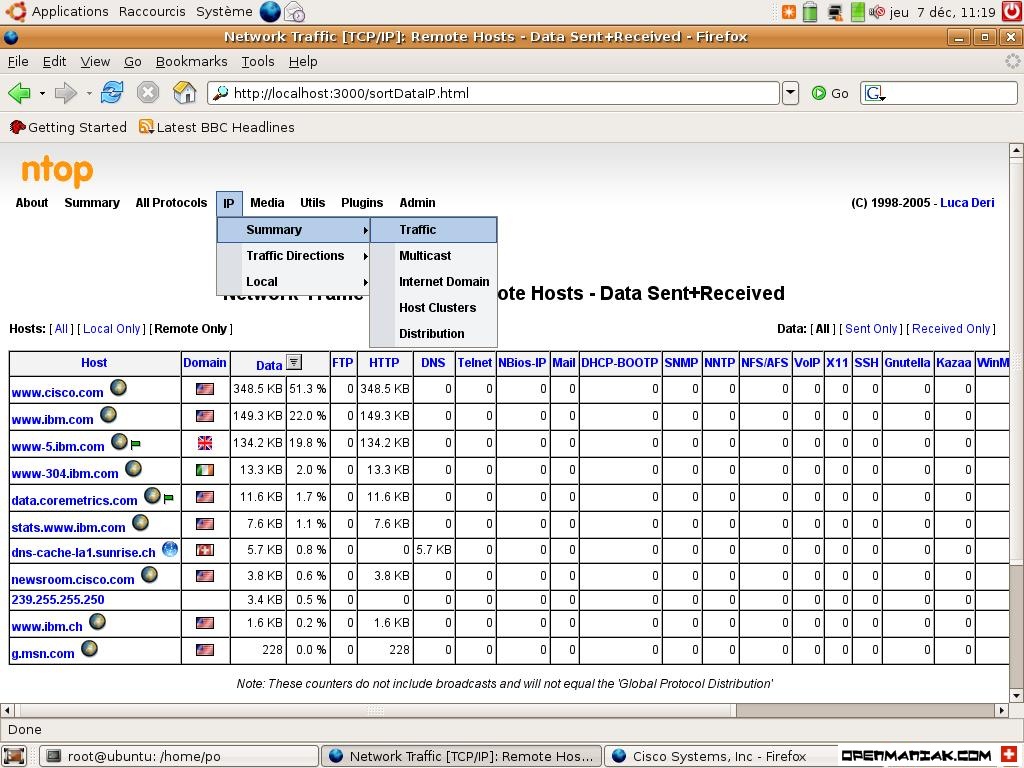
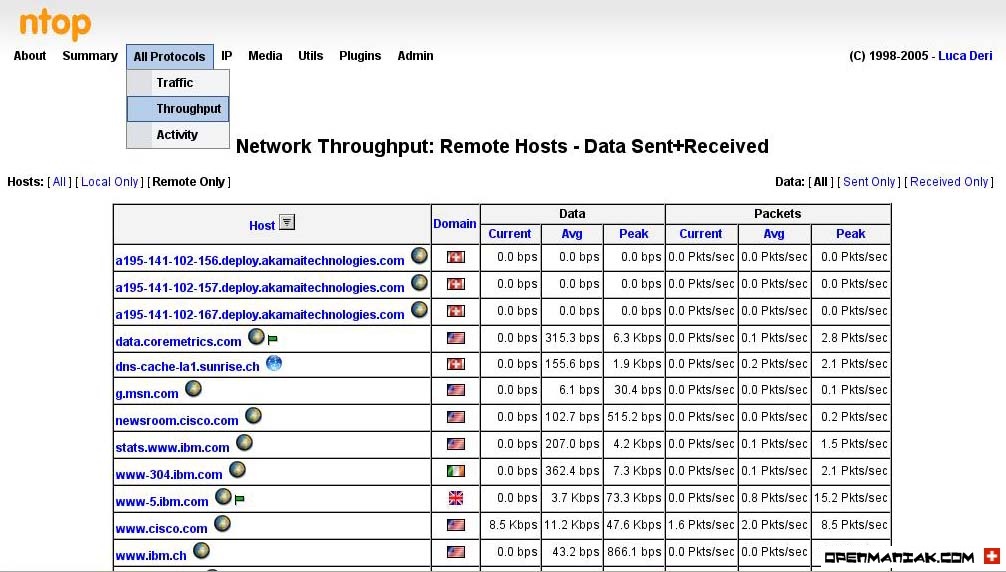
NTop is a tool that will provide statistics about network usage.

cacti ntop plugin ip summary traffic    cacti ntop plugin all protocols throughput

#apt-get install ntop
download the plugin and uncompress it in the ntop directory.

#tar -xvf /home/user/Desktop/ntop-0.1.tar.gz
Copy the ntop directory in the /usr/share/cacti/site/plugins/ directory

#cp /home/user/Desktop/ntop /usr/share/cacti/site/plugins/ -R
We have to edit the /usr/share/cacti/site/include/config.php file and add just after the line beginning with "$plugins = array();":

$plugins[] = ‘ntop’;
Run ntop

ntop -u user -w 3000
Under the cacti web interface, don't forget to enable the NTOP plugin:

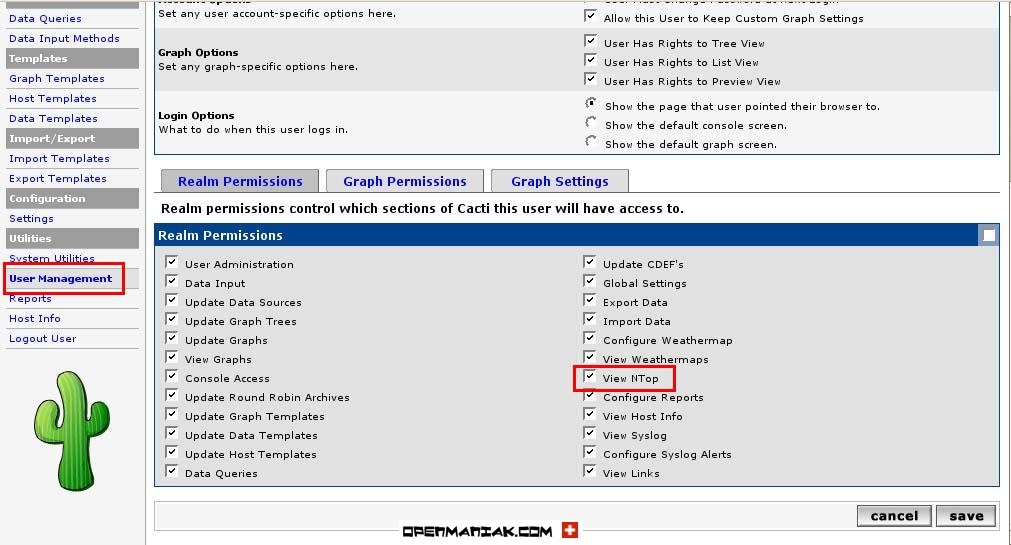
Login in to your cacti interface -> click on the console tab -> click on "User Management" in the "Utilities" section -> click on an user -> enable the "View NTop" checkbox.
cacti ntop plugin user management view ntop


2. PHP WEATHERMAP PLUGIN

For more information about PHP Weathermap, read the the PHP Weathermap tutorial.

Download the plugin and uncompress it in the weathermap directory. Enter the following command from where you downloaded Weathermap:

#tar -xvf /home/user/Desktop/php-weathermap-0.82.zip
Copy the weathermap directory in the /usr/share/cacti/site/plugins/ directory

#cp /home/user/Desktop/weathermap/ /usr/share/cacti/site/plugins -R
We have to edit the /usr/share/cacti/site/include/config.php file and add just after the line beginning with "$plugins = array();":

$plugins[] = ‘weathermap’;
Under the cacti web interface, don't forget to enable the weathermap plugin:

Login in to your cacti interface -> click on the console tab -> click on "User Management" in the "Utilities" section -> click on an user -> enable the "View Weathermaps" checkbox.
cacti php weathermap plugin user management configure weathermap

See the weathermap tutorial for help to configure the tool.


3. SYSLOG-NG PLUGIN (0.4)

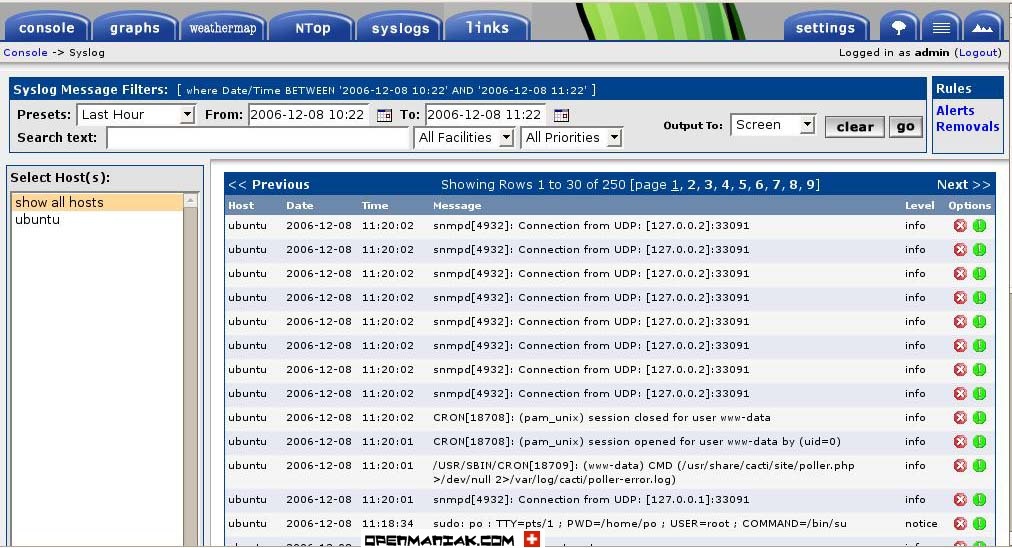
An impressive plugin that permit to read the syslog-ng messages.

cacti plugin php syslog-ng

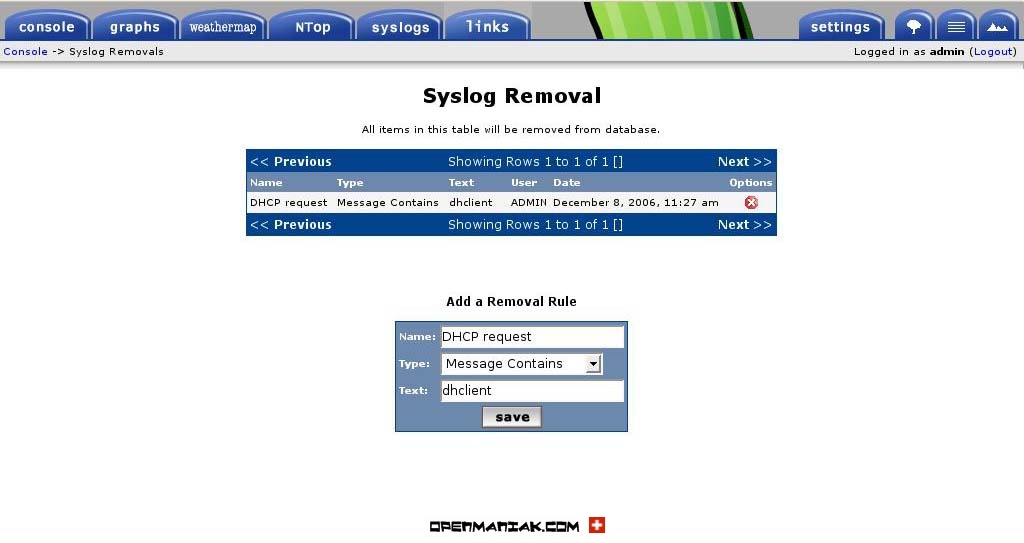
You can trigger alerts or remove logs from the interface.

cacti plugin php syslog-ng alerts    cacti plugin php syslog-ng removal


For more information about syslog-ng, read the the php-syslog-ng tutorial.

download the plugin and uncompress it in the haloe directory. Enter the following command from where you downloaded haloe:

#tar -xvf /home/user/Desktop/haloe-0.4.tar.gz
Copy the haloe directory in the /usr/share/cacti/site/plugins/ directory

#cp /home/user/Desktop/haloe /usr/share/cacti/site/plugins/ -R
We have to edit the /usr/share/cacti/site/include/config.php file and add just after the line beginning with "$plugins = array();":

$plugins[] = ‘haloe’;
If you don't already have it, you have to install syslog-ng et forward the logs collect by it towards the MySQL database.

Install syslog-ng:

#apt-get install syslog-ng
Syslog-ng will uninstall the default syslog server.
We have to configure the /etc/syslog-ng/syslog-ng.conf file

Syslog changes

To receive logs from a remote machine trough the network, uncomment (ie remove the #) the line containing udp();

# use the following line if you want to receive remote UDP logging messages
# (this is equivalent to the "-r" syslogd flag)
udp();
Forward the logs to the MySQL database.

Add the lines below always in the /etc/syslog-ng/syslog-ng.conf file:

log {
source(s_all);
destination(d_mysql);
};

# pipe messages to /var/log/mysql.pipe to be processed by mysql
destination d_mysql {
pipe("/var/log/mysql.pipe"
template("INSERT INTO syslog_incoming
(facility, priority, date, time, host, message, seq, status)
VALUES ( '$FACILITY', '$PRIORITY', '$YEAR-$MONTH-$DAY', '$HOUR:$MIN:$SEC', '$HOST', '$MSG', '$SEQ', '$STATUS' );\n") template-escape(yes));

};
Database settings.

We need to create the MySQL database and then import the tables with the sql file.

#mysqladmin -u root -p create haloe
#mysql -u root -p haloe < /home/user/Desktop/haloe/syslog.sql
We give all the rights to a new MySQL user called haloeuser on the haloe database:

#mysql -u root -p haloe
>GRANT ALL ON haloe.* TO haloeuser@localhost IDENTIFIED BY 'haloepassword';
>flush privileges;
Configure the MySQL connection settings in the /usr/share/cacti/site/plugins/haloe/config.php file:

$haloedb_type = "mysql";
$haloedb_default = "haloe";
$haloedb_hostname = "localhost";
$haloedb_username = "haloeuser";
$haloedb_password = "haloepassword";
In the same file, to see colored lines in your syslog plugin, you need to change the lines beginning with "$haloe_colors" by the lines below:

$haloe_colors["emerg"] = "FF0000";
$haloe_colors["crit"] = "FF0000";
$haloe_colors["alert"] = "FF0000";
$haloe_colors["err"] = "FFAB00";
$haloe_colors["warning"] = "FFFF00";
$haloe_colors["notice"] = "FFAB00";
// $haloe_colors["info"] = "FFAB00";
// $haloe_colors["debug"] = "D0D0D0";
The MySQL pipe file.

Now, we have to create the temporary MySQL insertion file (pipe file):

#mkfifo /var/log/mysql.pipe
We have to push the logs inside the database with a bash script:

Create a new file and insert the line below, save the file as syslog2mysql.sh in the /usr/share/cacti/site/plugings/haloe directory.
Don't forget to change the MySQL username and password.

#!/bin/bash

if [ ! -e /var/log/mysql.pipe ]
then
mkfifo /var/log/mysql.pipe
fi
while [ -e /var/log/mysql.pipe ]
do mysql -u haloeuser --password=haloepassword haloe < /var/log/mysql.pipe >/dev/null
done
The script means that if the mysql.pipe file does not exist, create it.
Then, while the mysql.pipe exists, open a MySQL connection, and send the "buffered" data the database.

Run the syslog2mysql script to see if everything is okay. Errors will be displayed in case of problems.

#/usr/share/cacti/site/plugins/haloe/syslog2mysql.sh
Stop the script with "Ctrl+C".

Final step:

To run the syslog2mysql.sh script without the root user, we need to change a file ownership:

#chown user /etc/cacti/debian.php
It's important that the www-data user, in other words the apache web server user, has the read permission on this file. Normally, it's already the case:

#ls -l | grep debian.php
-rw-r----- 1 user www-data 557 2006-11-18 14:00 debian.php
Run the syslog2mysql.sh script under the user of your choice:

#su user
user@linux#/usr/share/cacti/site/plugins/haloe/syslog2mysql.sh
Finally, we need to configure two cron jobs.

crontab -e -u user
# when the computer boots, it starts automatically the syslog2mysql.sh script.
@reboot /usr/share/cacti/site/plugins/haloe/syslog2mysql.sh
# A command required to transfer the data stored
# into the syslog_incoming table to the syslog table. (every 1 minute)
# For an unknown reason this is not done automatically by the syslog plugin.
*/1 * * * * php5 -q /usr/share/cacti/site/plugins/haloe/syslog_process.php
The crontab command will update the /var/spool/cron/crontabs/user file.

Under the cacti web interface, don't forget to enable the syslog-ng plugin:

Login in to your cacti interface -> click on the console tab -> click on "User Management" in the "Utilities" section -> click on an user -> enable the "View Syslog" checkbox.
cacti plugin php syslog-ng user management view syslog configure syslog alerts

Kamis, 09 Januari 2014

Hello everyone. I have put together what I feel is a very straight forward guide that walks you through installing Cacti and Nagios on the same machine with every command needed. The purpose for this is to have trending data, monitoring and alerting all from within 1 GUI, Cacti. I am a beginner Linux user and I found it somewhat difficult to find information that was tailored to a beginner, so this is the compilation of all the research I did in order to obtain my desired end result. This guide isn't 100% complete yet, but the bulk of it is done and tested, so I wanted to share this in case someone out there is looking for such a guide to help them out. I don't really go into how to use or configure Cacti or Nagios, I just get you to the point where they are all working and configured at what I consider the minimum.

I used ESX 4.1 as my VM platform.

If you aren't comfortable enough installing an OS in your VM environment or on your dedicate machine, then I recommend taking a look at this excellent website run by a great group of people:
http://www.turnkeylinux.org/lampstack
This will skip you forward to the VMware Tools step.
*NOTE* The TKL lamp stack is based on Ubuntu 10.04.1 LTS, so there may be some variations not noted in my instructions.

Still in progress
--------------------------
Getting postfix setup correctly to use gmail to send notifications to email and sms (using providers email addresses, ie 1234567890@vzwireless.com).


Specifications
--------------------------
Virtual Machine (This is simply what I used, you can change this to your liking)
2 CPU
512MB RAM
80GB HD (Thin)

Ubuntu 11.04 Server x64
Apache
MySQL
PHP5
OpenSSH
PHPMyAdmin
Webmin
SNMP
RRDTool
VMTools
Build Essentials
Linux Headers

Cacti 0.8.7g
Spine 0.8.7g
0.8.7g Patches
Plugin Architecture 2.8
Monitor
Settings
MacTrack
SpikeKill
Nagios Plugin for Cacti
Discovery

Nagios Core 3.2.3
Plugins 1.4.15
NRPE 2.12
NDOUtils 1.4b7 (b9 is reported to be very buggy and in fact didn't work for me, so this is why I chose b7)


Install
--------------------------
Ubuntu Server 11.04 x64
Boot ubuntu server ISO
Work through installation wizard
Hostname: Choose your hostname
Time Zone: Choose your timezone
Partition Disk: Guided - use entire disk and set up LVM (LVM makes it easier to resize in the future)
Username: Choose a username
Password: **********
Install security updates automatically (This is my preference, not necessarily your preference)
Software selection: OpenSSH server, LAMP server, Mail server
MySQL root password: **********
Postfix Configuration - type: Satellite
Postfix Configuration - mail name: Your FQDN
Assign IP Address

Update OS
sudo -i
apt-get update
apt-get full-upgrade -y
reboot

Connect over SSH now
sudo -i
passwd (this sets the root password, needed for webmin to work, so if you don't want webmin you can skip this part)
apt-get install php5-gd php5-mysql php5-cgi php5-snmp -y
apt-get install php-pear php5-ldap -y
apt-get install snmp snmpd libnet-snmp-perl libsnmp-perl -y
apt-get install rrdtool librrds-perl –y
apt-get install phpmyadmin -y
apt-get install libmysqlclient-dev -y
apt-get install sysv-rc-conf -y
apt-get install build-essential -y
apt-get install linux-headers-$(uname -r) -y
apt-get install libldap2-dev libsnmp-dev -y
apt-get install libconfig-inifiles-perl libcrypt-des-perl libdigest-hmac-perl libdigest-sha1-perl libgd-gd2-perl -y
apt-get install libgd2-xpm-dev -y
apt-get install ntp -y

Webmin
nano /etc/apt/sources.list
add the following lines at the end of the file
Code:
deb http://download.webmin.com/download/repository sarge contrib
deb http://webmin.mirror.somersettechsolutions.co.uk/repository sarge contrib

save and exit
cd /tmp
wget http://www.webmin.com/jcameron-key.asc
apt-key add jcameron-key.asc
apt-get update
apt-get install webmin -y
wget https://webmin-theme-stressfree.googlec ... .10.tar.gz
login to webmin via https://IP:10000
Webmin > Webmin Configuration > Install theme > from local file
Browse to /tmp and choose theme-stressfree-2.10.tar.gz
Return to themes list
Current theme: StressFree theme

VMware Tools
In vCenter, right click VM and choose Guest > Install/Upgrade VMware tools
mount /dev/cdrom /media/cdrom
tar -zxf /media/cdrom/VMwareTools-8.3.2-257589.tar.gz
vmware-tools-distrib/vmware-install.pl
take all the defaults all the way through the installation
reboot

Cacti
cd /tmp
wget http://www.cacti.net/downloads/cacti-0.8.7g.tar.gz
tar –zxvf cacti-0.8.7g.tar.gz
mv /tmp/cacti-0.8.7g/ /var/www/cacti
groupadd cacti
useradd -g cacti cactiuser
chown –R cactiuser /var/www/cacti/rra
chown –R cactiuser /var/www/cacti/log
chmod –R 777 /var/www/cacti/log
chmod –R 777 /var/www/cacti/rra
login to phpmyadmin via http://IP/phpmyadmin
Click on the Priveledges tab > Add a new User
Username: cacti
Host: localhost
Password: *************
Select "Create database with same name and grant all privileges"
Click Go
Back to SSH window
mysql –u root –p cacti < /var/www/cacti/cacti.sql
Verify in phpmyadmin that the cacti db is no longer empty
nano /var/www/cacti/include/config.php
update the MySQL settings
nano /etc/crontab
add the following line to the end of the file:
Code:
*/5 * * * * cactiuser php5 /var/www/cacti/poller.php > /dev/null 2>&1


Spine
wget http://www.cacti.net/downloads/spine/ca ... .7g.tar.gz
tar –zxvf cacti-spine-0.8.7g.tar.gz
mv /tmp/cacti-spine-0.8.7g/ /usr/local/spine
cd /usr/local/spine
aclocal
libtoolize –f
autoheader
autoconf
automake –a
automake
./configure
make
make install
cp /usr/local/spine/spine.conf.dist /usr/local/spine/spine.conf
nano spine.conf
update the sql settings in this file to reflect correct settings
cd /var/www/cacti
wget http://www.cacti.net/downloads/patches/ ... vate.patch
wget http://www.cacti.net/downloads/patches/ ... view.patch
wget http://www.cacti.net/downloads/patches/ ... tput.patch
wget http://www.cacti.net/downloads/patches/ ... tion.patch
wget http://www.cacti.net/downloads/patches/ ... arse.patch
wget http://www.cacti.net/downloads/patches/ ... ping.patch
wget http://www.cacti.net/downloads/patches/ ... rval.patch
patch -p1 -N < data_source_deactivate.patch
patch -p1 -N < graph_list_view.patch
patch -p1 -N < html_output.patch
patch -p1 -N < ldap_group_authenication.patch
patch -p1 -N < script_server_command_line_parse.patch
patch -p1 -N < ping.patch
patch -p1 -N < poller_interval.patch
cd /usr/local/spine
wget http://www.cacti.net/downloads/spine/pa ... sues.patch
patch -p1 -N < unified_issues.patch

Plugin Architecture
cd /tmp
wget http://mirror.cactiusers.org/downloads/ ... 2.8.tar.gz
tar –zxvf cacti-plugin-0.8.7g-PA-v2.8.tar.gz
cp -r /tmp/cacti-plugin-arch/files-0.8.7g/* /var/www/cacti
cd /var/www/cacti
patch -p1 -N --dry-run < /tmp/cacti-plugin-arch/cacti-plugin-0.8.7g-PA-v2.8.diff
patch -p1 -N < /tmp/cacti-plugin-arch/cacti-plugin-0.8.7g-PA-v2.8.diff
nano /var/www/cacti/include/global.php
set correct sql settings
nano /var/www/cacti/include/config.php
set the $url_path variable to /cacti/
mysql -u root -p cacti < /tmp/cacti-plugin-arch/pa.sql

Plugins (Skip any plugins you aren't interested in having)
cd plugins
wget http://docs.cacti.net/_media/plugin:settings-v0.7-1.tgz
mv plugin\:settings-v0.7-1.tgz settings-v0.7-1.tgz
tar –zxvf settings-v0.7-1.tgz
wget http://docs.cacti.net/_media/plugin:monitor-v1.2-1.tgz
mv plugin\:monitor-v1.2-1.tgz monitor-v1.2-1.tgz
tar –zxvf monitor-v1.2-1.tgz
mysql -u root -p cacti < /var/www/cacti/plugins/monitor/monitor.sql
wget http://docs.cacti.net/_media/plugin:dis ... v1.1-1.tgz
mv plugin\:discovery-v1.1-1.tgz discovery-v1.1-1.tgz
tar –zxvf discovery-v1.1-1.tgz
mysql -u root -p cacti < /var/www/cacti/plugins/discovery/discover.sql
wget http://docs.cacti.net/_media/plugin:mactrack-v2.9-1.tgz
mv plugin\:mactrack-v2.9-1.tgz mactrack-v2.9-1.tgz
tar –zxvf mactrack-v2.9-1.tgz
mysql -u root -p cacti < /var/www/cacti/plugins/mactrack/mactrack.sql
wget http://docs.cacti.net/_media/plugin:spi ... v1.2-1.tgz
mv plugin\:spikekill-v1.2-1.tgz spikekill-v1.2-1.tgz
tar –zxvf spikekill-v1.2-1.tgz
download this file http://www.mediafire.com/?iefyesb24ppsbwl and transfer it to your linux box to /var/www/cacti/plugins
tar -xf npc-2.0.4.tar.gz

Open a web browser and visit http://IP/cacti
Go through the install wizard and take all the defaults
change the admin password
Settings > Path > Spine Poller File Path = /usr/local/spine/spine > Save
Settings > Poller > change Poller Type to Spine > Save
User Management > admin > check Plugin Management > Save
Plugin Management > Install All Plugins (click blue arrow) and then Enable All Plugins you want to use (green arrow)
Settings > NPC tab > check Remote Commands
Insert: /usr/local/nagios/var/rw/nagios.cmd to "Nagios Command File Path" box
Insert the Nagios URL: http://IP/nagios/
Click Save
Settings > Misc > Subnet to scan - enter the subnet you want to scan
Enter the appropriate DNS server
Click Save

Nagios
useradd -m -s /bin/bash nagios
passwd nagios
groupadd nagcmd
usermod -G nagios,nagcmd nagios
usermod -a -G nagios,nagcmd www-data
usermod -a -G nagios,nagcmd cactiuser
cd /tmp
wget http://prdownloads.sourceforge.net/sour ... 2.3.tar.gz
wget http://prdownloads.sourceforge.net/sour ... .15.tar.gz
tar xvzf nagios-3.2.3.tar.gz
tar xzf nagios-plugins-1.4.15.tar.gz
cd nagios-3.2.3
./configure --with-command-group=nagcmd
make all
make install
make install-init
make install-config
make install-commandmode
nano /usr/local/nagios/etc/objects/contacts.cfg
change the email address to yours
make install-webconf
htpasswd -c /usr/local/nagios/etc/htpasswd.users nagiosadmin
enter a great password
/etc/init.d/apache2 reload
cd /tmp/nagios-plugins-1.4.15/
./configure --with-nagios-user=nagios --with-nagios-group=nagios
make
make install
ln -s /etc/init.d/nagios /etc/rcS.d/S99nagios
/usr/local/nagios/bin/nagios -v /usr/local/nagios/etc/nagios.cfg
if there are errors, resolve them
/etc/init.d/nagios start
http://IP/nagios/
verify local services are OK

NDOUtils
cd /tmp
wget http://sourceforge.net/projects/nagios/ ... 4b7.tar.gz
tar xvfz ndoutils-1.4b7.tar.gz
cd ndoutils-1.4b7
./configure
make
cp src/ndomod-3x.o /usr/local/nagios/bin/ndomod.o
cp config/ndomod.cfg /usr/local/nagios/etc/ndomod.cfg
nano /usr/local/nagios/etc/ndomod.cfg
Code:
output_type=tcpsocket
#output_type=unixsocket

output=127.0.0.1
#output=/usr/local/nagios/var/ndo.sock

nano /usr/local/nagios/etc/nagios.cfg
add the following line in the broker section: broker_module=/usr/local/nagios/bin/ndomod.o config_file=/usr/local/nagios/etc/ndomod.cfg
set to 1: process_performance_data=1
cp src/ndo2db-3x /usr/local/nagios/bin/ndo2db
cp config/ndo2db.cfg /usr/local/nagios/etc/ndo2db.cfg
nano /usr/local/nagios/etc/ndo2db.cfg
Code:
#socket_type=unix
socket_type=tcp

db_host=127.0.0.1
db_name=cacti
db_prefix=npc_
db_user=cacti
db_pass=***********

chmod go+r /usr/local/nagios/etc/ndo2db.cfg
chmod go+r /usr/local/nagios/etc/ndomod.cfg
nano /etc/init.d/ndo2db
Paste the script that is found in this page - look in the "NDO database configuration" section: http://www.itpointofview.com/?p=191
chmod gou+x /etc/init.d/ndo2db
reboot

Links
--------------------------
Cacti: http://YourIP/cacti
Nagios: http://YourIP/nagios
Webmin: https://YourIP:10000
PhpMyAdmin: http://YourIP/phpmyadmin

Let me know if I did anything wrong here, duplicated steps, could do things a better way. I am happy to learn and welcome feedback. I hope this can help a few of you out there. If you require assistance of any kind in relation to my guide, just post here and I will do my best to help out. I am still very limited in my knowledge, but have had a good time learning linux, cacti and nagios. I will be creating another guide soon as well but using CentOS instead of Ubuntu.

Thanks for stopping by!


Big thanks to the following authors/websites, they proved invaluable.
------------------------------------------------------------------

https://richardkok.wordpress.com/2010/1 ... p-by-step/
http://www.ubuntugeek.com/how-to-instal ... erver.html
http://www.linuxreaders.com/2009/04/19/ ... tallation/
http://www.itpointofview.com/?p=191
http://trac2.assembla.com/npc/wiki/QuickStartGuide
http://deedoubledub.phpnet.us/2009/03/n ... buntu-804/
http://www.turnkeylinux.org