Rabu, 02 Juli 2014

Untuk melimit melalui layer 7, maka script yang harus di tambahkan yaitu :

/ip firewall layer7-protocol
add comment="" name=High regexp="^.*get.+\\.(exe|rar|iso|zip|7zip|0[0-9][1-9]|flv|mkv|avi|mp4|3gp|rmvb|mp3|img|dat|mov).*\$"
add comment="" name=Mid regexp="^.*get.+\\.(zip|rar|7z).*\$"
add comment="" name=End regexp="^.*get.+\\.(pdf|doc|docx|xlsx|xls|rtf|ppt|ppt).*\$"
add comment="" name=Video regexp="http/(0\\.9|1\\.0|1\\.1)[\\x09-\\x0d ][1-5][0-9][0-9][\\x09-\\x0d -~]*(content-type: video)"

Menggunakan Regular Expersion silahkan googling untuk penjelasanya.
High = File yg biasa berukuran besar dan paling sering didownload
Mid = File bertype zip rar 7z berukuran hanya sampai 10 MB jika lebih akan dilimit
End = File yg tidak ingin di limit
Video = Stream Video

Kedua tandai mangle


/ip firewall mangle
add action=mark-packet chain=forward comment="High Eks" disabled=no dst-address-list=!Bypass layer7-protocol=High new-packet-mark=High-Ext passthrough=no protocol=tcp
add action=mark-packet chain=forward comment="Mid Eks" connection-bytes=10485760-4294967295 disabled=no layer7-protocol=Mid new-packet-mark=Mid-Ext passthrough=no protocol=tcp
add action=mark-packet chain=forward comment="Low Eks" disabled=no layer7-protocol=End new-packet-mark=End-Ext passthrough=no protocol=tcp
add action=mark-packet chain=forward comment=Video disabled=no layer7-protocol=Video new-packet-mark=Video passthrough=no protocol=tcp src-address-list=!Bypass

Unttuk selanjutnya... di queue nya setting sendiri ya.. ^_^
Selasa, 10 Juni 2014

Creating an alias for an account

The following codes illustrate how you can setup an alias. This step is optional since we are going to configure virtual mail domains later in this howto. I have added this step to make sure you understand how you can do this in case it is required.
Create a user
sudo useradd -m -s /bin/bash sysadmin
sudo passwd sysadmin
Edit the alias table
Open the alias file with:
sudo vi /etc/aliases
Add the following code:
fmaster: sysadmin
To make your changes take effect type:
sudo newaliases

To test your changes send a mail to fmaster and check the mail in /home/sysadmin/Maildir/new folder.

Per User .forward Files

Users can control their own mail delivery by specifying destinations in a file called .forward in their home directories. The syntax of these files is the same as system aliases, except that the lookup key and colon are not present.
I will illustrate an example here:
Assume that you need to forward all the mails which come to the sysadmin account to an another account. Enter the following commands:
su - sysadmin
touch .forward
Then open the .forward file
vi .forward
Add the following code:
fossedu@example.com
Remember to use email address which exists in this exercise.

Now send a mail to sysadmin and mail should come to fossedu@example.com
With this approach, every hosted domain can have its own info etc. email address. However, it still uses Linux system accounts for local mailbox deliveries.
With virtual alias domains, each hosted address is aliased to a local UNIX system account or to a remote address. The example below shows how to use this mechanism for the fossedu.org and linuxelabs.com domains.
Inside the main.cf file, we tell it how to handle these virtual domains:
sudo postconf -e "virtual_alias_domains = fossedu.org linuxelabs.com"
sudo postconf -e "virtual_alias_maps = hash:/etc/postfix/virtual"
Edit the /etc/postfix/virtual file:
Add two Linux system accounts
sudo useradd -m -s /bin/bash sigiri
sudo useradd -m -s /bin/bash kala
Set passwords for the above users.
sudo passwd sigiri
sudo passwd kala
sudo vi /etc/postfix/virtual
Add the following code segment:
info@fossedu.org       sigiri
info@linuxelabs.com    kala
To create a Map Database type :
sudo postmap /etc/postfix/virtual
postmap is utility program that will convert /etc/postfix/virtual to /etc/postfix/virtual.db in Berkley DB format, so that Postfix can access the data faster.
Restart Postfix to make changes take effect:
sudo /etc/init.d/postfix restart

Send mails to both info@fossedu.org and info@linuxelabs.com and those mails should come to mailboxes of sigiri and kalarespectively.

Kamis, 08 Mei 2014

This is a script to remove automatically all the 404 Not found PPA's.Copy the below code and paste it into a file and name it as ppa-remove.

---
#!/bin/bash
sudo rm /tmp/update.txt; tput setaf 6; echo "Initializing.. Please Wait"
sudo apt-get update >> /tmp/update.txt 2>&1; awk '( /W:/ && /launchpad/ && /404/ ) { print substr($5,26) }' /tmp/update.txt > /tmp/awk.txt; awk -F '/' '{ print $1"/"$2 }' /tmp/awk.txt > /tmp/awk1.txt; sort -u /tmp/awk1.txt > /tmp/awk2.txt
tput sgr0
if [ -s /tmp/awk2.txt ]
then
  tput setaf 1
  printf "PPA's going to be removed\n%s\n" "$(cat /tmp/awk2.txt)"
  tput sgr0
  while read -r line; do echo "sudo add-apt-repository -r ppa:$line"; done < /tmp/awk2.txt > out
  bash out
else
  tput setaf 1
  echo "No PPA's to be removed"
  tput sgr0
fi

---

Give execute permission to the script

#sudo chmod +x ppa-remove

Copy and paste the ppa-remove file into /usr/bin directory.So that you can access it from anywhere.
Usage

sudo ppa-remove


reff :
http://askubuntu.com/questions/65911/how-can-i-fix-a-404-error-when-updating-packages

Rabu, 26 Maret 2014

The first thing you need to do is set up DNS records.

This is so anyone browsing from the internet can find your site using it’s domain name. Preferably you are running your own name server on ISPConfig3. If that is the case you need to go to your domain registrar’s site and change the name servers from whatever was set up as default to yours. (If you are not running your own name server you can create the DNS records with your registrar.)
Yours are likely to be ns1.youdomain.com and ns2.yourdomain.com.

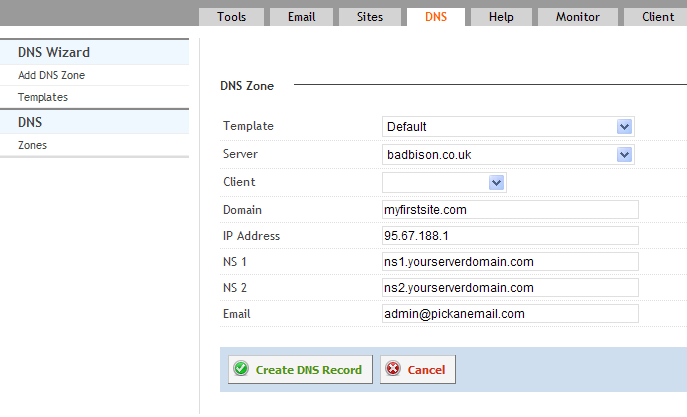
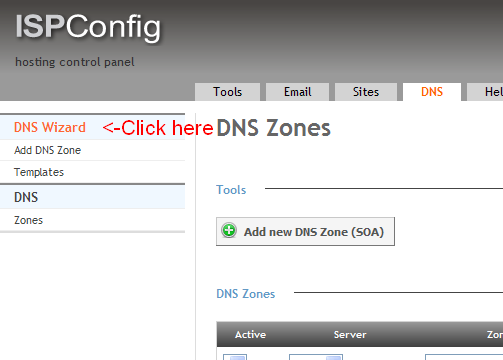
Next you need to add the zone records in ISPConfig3. I would recommend you use the ‘wizard’ to assist you with this if you’re not experienced. That will set you up web and mail records. There is an article waiting to be developed here giving you more detail, but in essence the fields you need to complete after pressing the wizard button should be similar to this:
Client: If you have made a client for this domain select it here
Domain: This is the domain that you are about to register  -    myfirstsite.com
IP Address: This is IP address that your server is publicly visible from, eg 95.67.188.1.   (it is not 192.168.0.100  That is your internal lan address)
NS1: This is the first name server address that you set up eg ns1.yourserverdomain.com
NS2: This is the second name server address that you set up eg ns2.yourserverdomain.com
Email: pick an email you own
Click the button ‘Create DNS Record’.

Now when anyone looks up ‘myfirstsite.com’ or email to you that domain, it will send the request to your server.

Now you need to add ‘myfirstsite.com’

This will instruct IPSConfig3 to make the relevant changes to Apache (that’s the web server) and install the default site files.
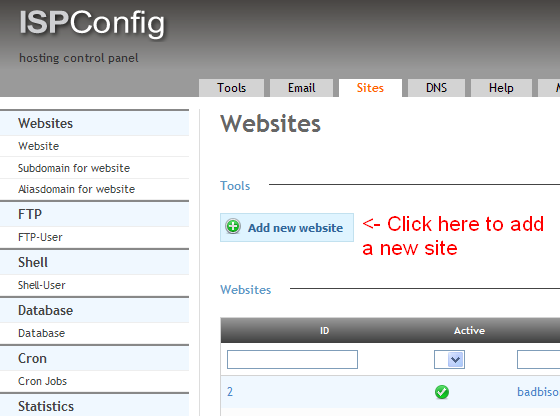
Click on the tab marked ‘Sites’.
In the main body of the page click ‘+Add new website’

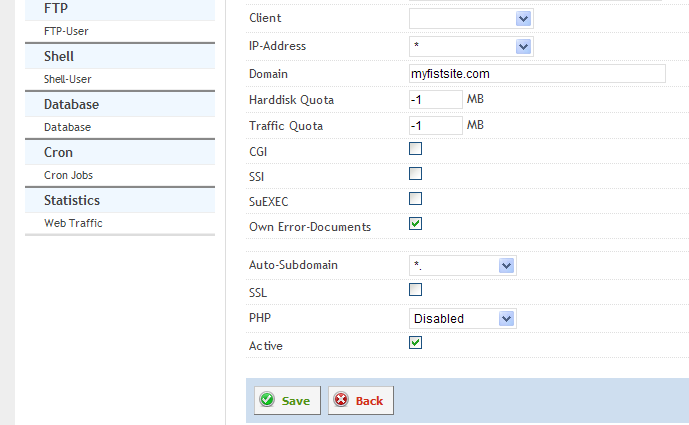
If it’s for a client, select the client in the drop down field.
Now complete the following fields:
Domain: myfirstsite.com        – just type the domain name, don’t include www
You can leave most of the fields blank for a basic static site.
In auto subdomain, I usually select *.  This creates the directive  so a browser could type anything prior to the domain name and get to your site, eg, www.myfirstsite.com. anyprefix.myfirstsite.com or even just myfirstsite.com.
Click ‘save’.

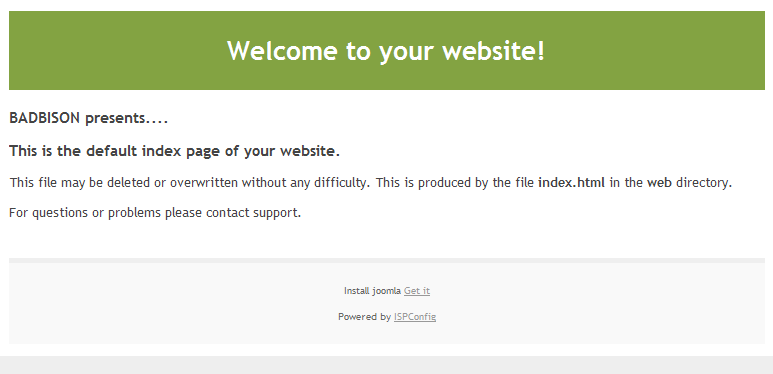
That should be it. Now when browsing to myfirstsite.com you should get a default index page displayed.
It will look like this


That’s it. See Further guides for setting up FTP settings to upload some content.

Selasa, 25 Maret 2014

Mbox vs Maildir: Mail Storage Formats

The Unix world has two ways of storing mail messages, the traditional mbox format and the newer maildir format. Postfix and Dovecot supports the two mail storage format so you can use any format, but I highly recommend you use the maildir format.
The Mbox Format

This is the traditional way of storing mail messages in the Unix world. In this format, a regular text file which serves as the mail user’s mailbox file is created.
Mbox storage format

Mbox storage format
Fig. 1: Mbox storage format
How Mbox works
Receiving and storing a mail

    Lock the mailbox.
    Append the header (usually “From [sender's email address] [date and time received]“) and the mail into the mailbox file.
    Unlock the mailbox.

Retrieving a mail

    Lock the mailbox.
    Locate and read the mail.
    Update the mail status flag.
    Unlock the mailbox.

Deleting a mail

    Lock the mailbox.
    Move the contents of the mailbox, beginning from the position right after the mail to be deleted until the end of the mailbox, into the position of the mail to be deleted.
    Reduce the size of the mailbox file by the size of the deleted mail.
    Unlock the mailbox.

Searching a mail

    Lock the mailbox.
    Search the mailbox.
    Unlock the mailbox.


Advantages

    Format is universally supported.
    Appending a new mail into the mailbox file is fast.
    Searching text inside a single mailbox file is fast.

Disadvantages

    Has file locking problems.
    Has problems when used with network file systems.
    Format is prone to corruption.


The Maildir Format

This is a new way of storing mail messages. In this format, a directory usually named Maildir is created for each mail user. Under this directory are three more directories named new, cur and tmp.
Maildir storage format
Fig. 2: Maildir storage format
How Maildir works
Receiving and storing a mail

    Create a unique file in the tmp directory.
    Write the mail into the newly created file.
    Move the completely written mail into the new directory.

Retrieving a mail

    Locate and read the mail.
    Move the mail from new into the cur directory and append the mail status flag into the filename.

Deleting a mail

    Delete the file containing the mail.

Searching a mail

    Search each and every mail file.


Advantages

    Locating, retrieving and deleting a specific mail is fast.
    Minimal to no file locking needed.
    Can be used on network file system.
    Immune to mailbox corruption (assuming the hardware will not fail).

Disadvantages

    Some filesystems may not efficiently handle a large number of small files.
    Searching text, which requires all mail files to be opened is slow.

- See more at: http://www.linuxmail.info/mbox-maildir-mail-storage-formats/#sthash.RiiHuAEN.dpuf